Click the button below to access the patient portal. If you are an existing patient and need to set up your account, please review the instructions below. If you are a new patient, please review the instructions here to set up your account.
Accessing Your Account
For Existing Patients
- Navigate to the Patient Portal.
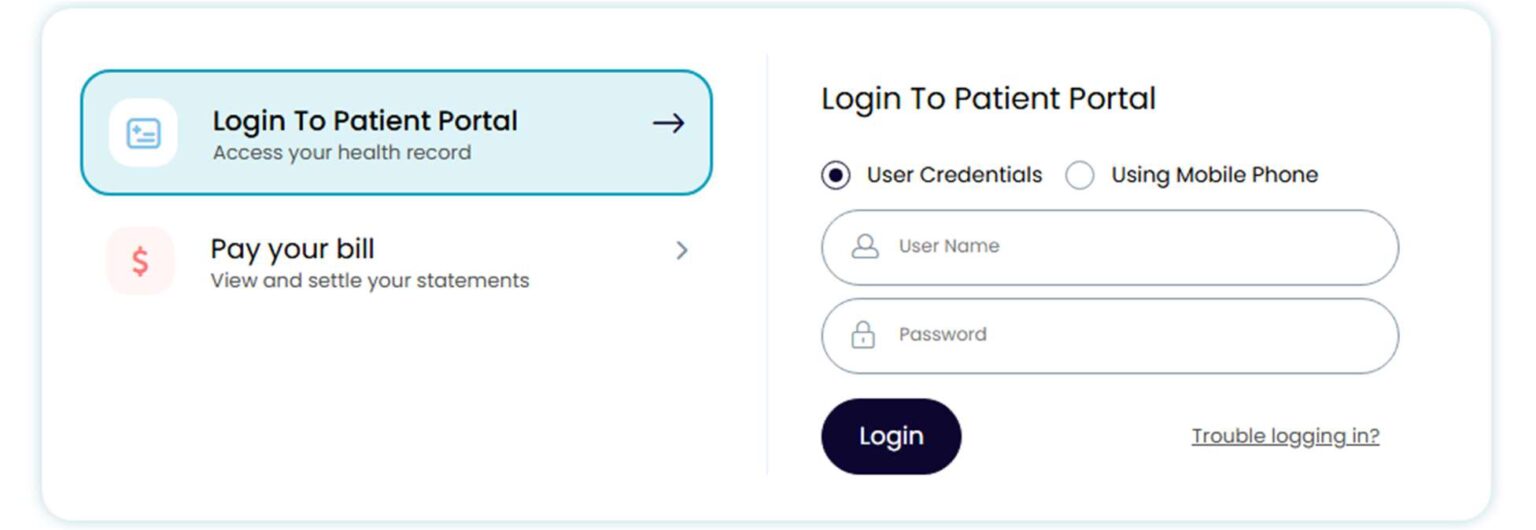
- To access your patient information, use the following screen to enter your login information (normally your email address, including the website — gmail.com/yahoo.com/hotmail.com
Paying Your Bill
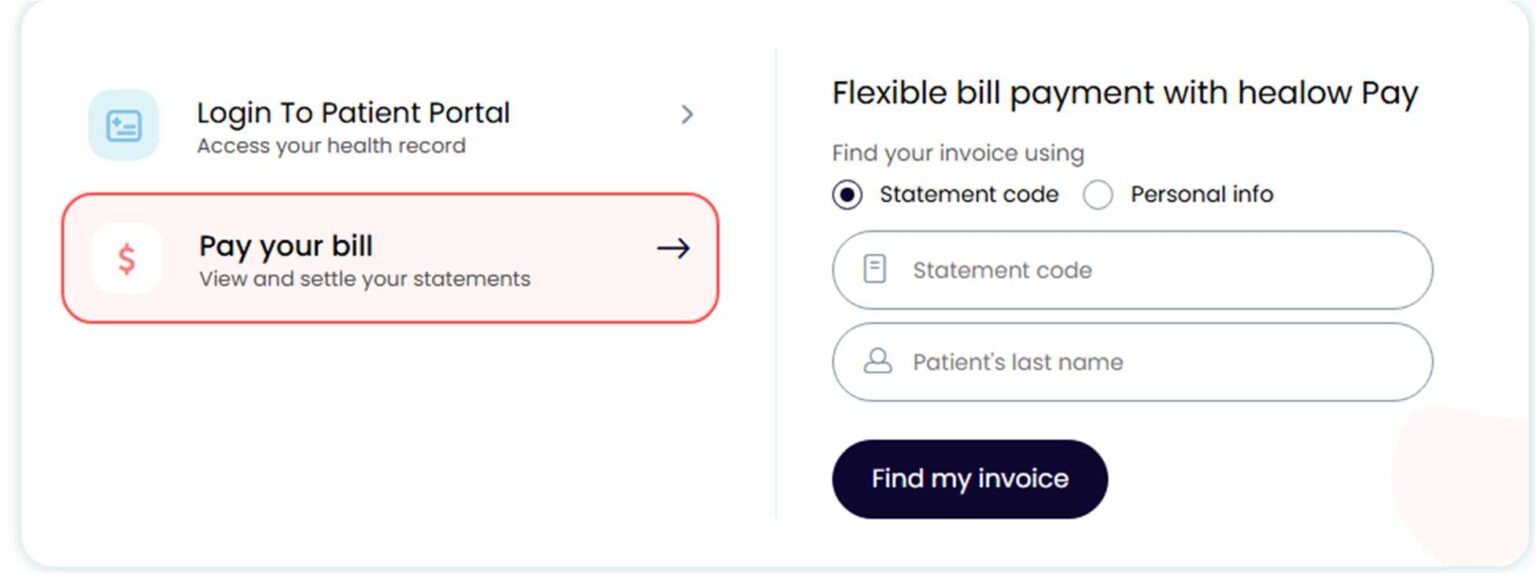
To pay a bill associated with your account, you can click “Pay Your Bill” and enter the information on your statement.
Reviewing Your Health Information
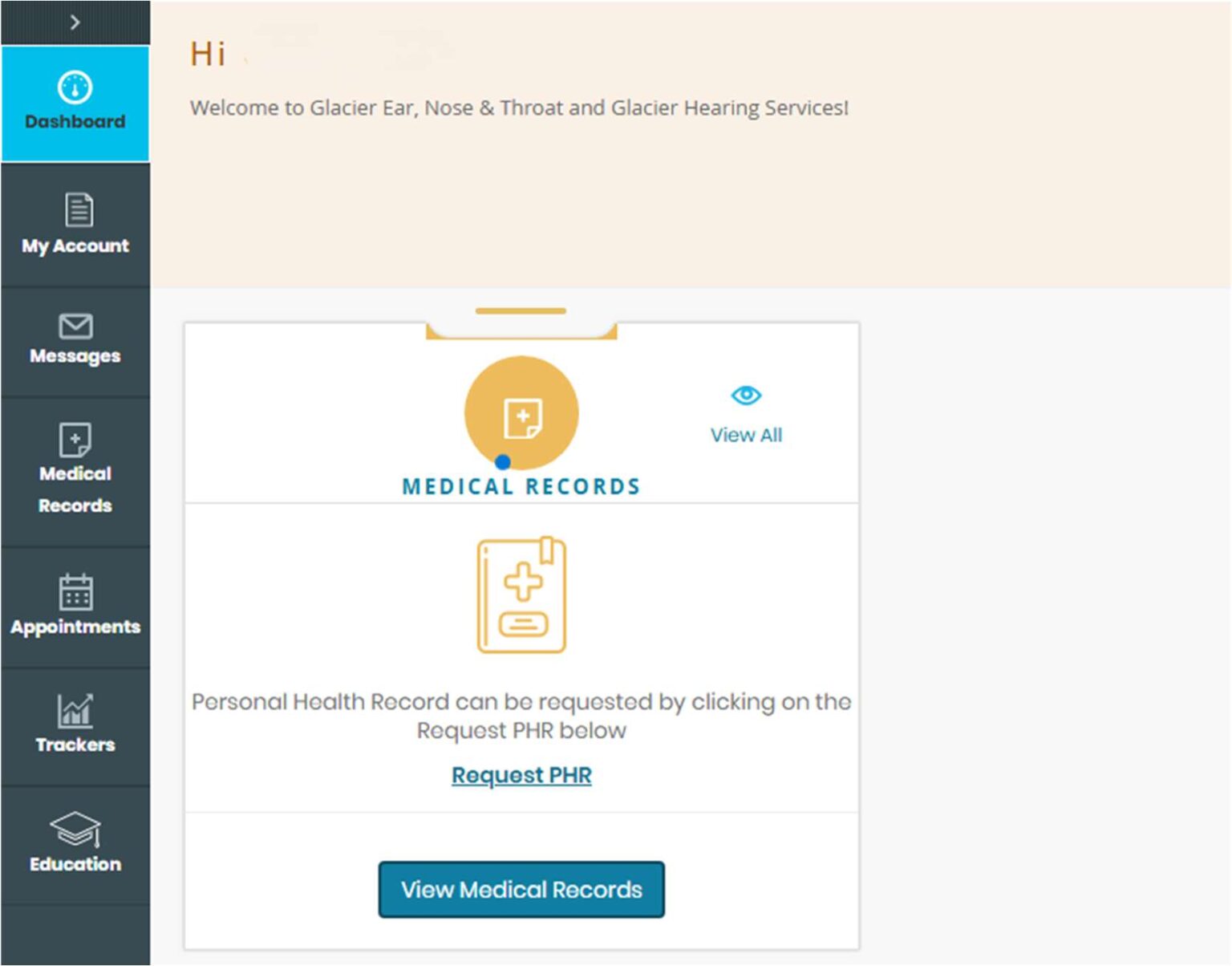
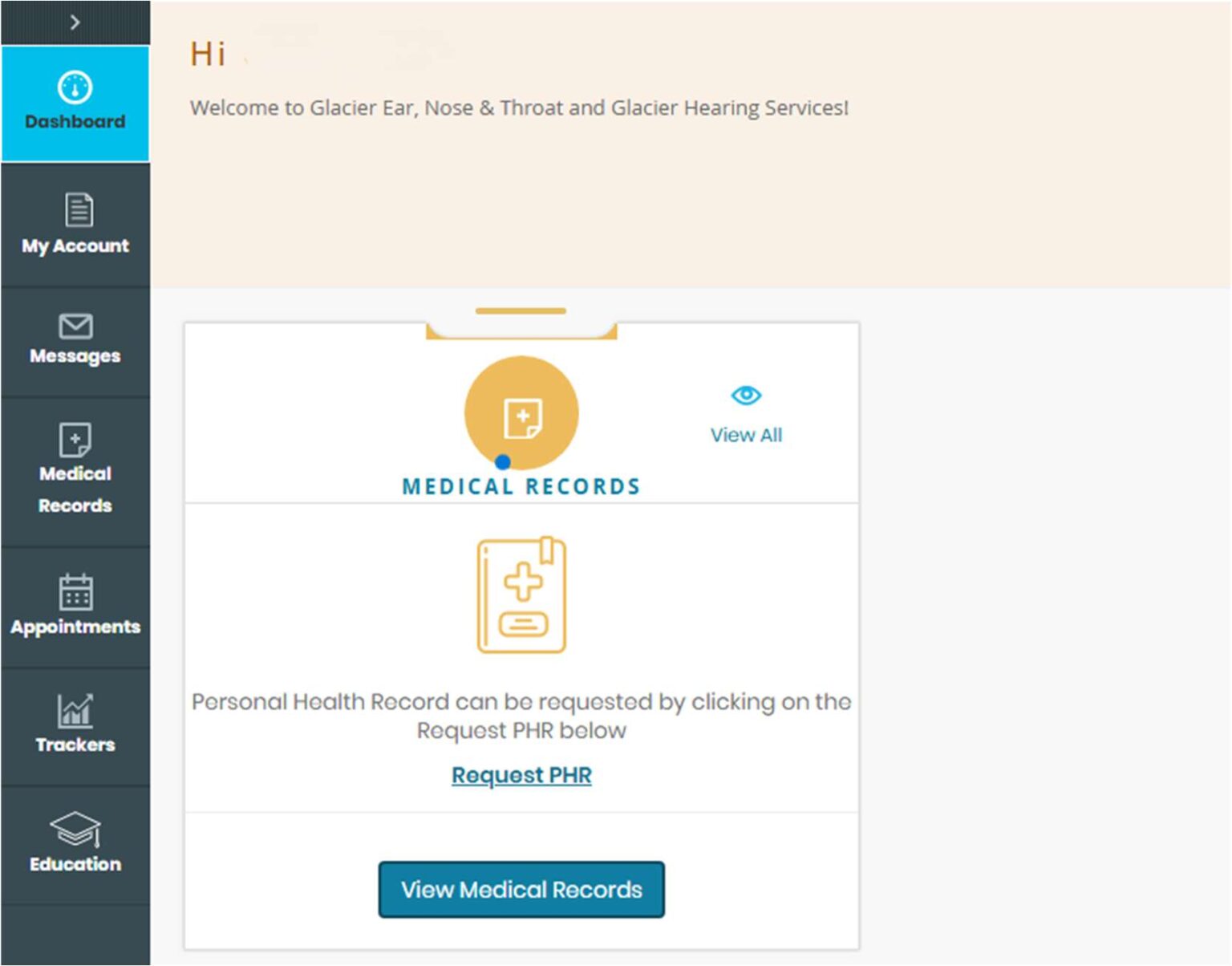
After logging in, you will be able to view your medical records, appointments, and see messages sent to you from your provider or our billing office. You can select what to view from the left-hand menu visible on your computer screen.
Additional Patient Portal Features
Appointments
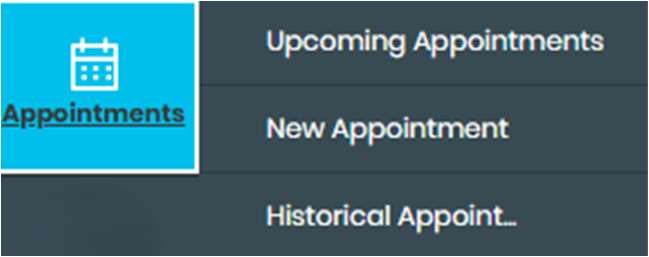
You can view upcoming appointments, check past appointment dates, and request new appointments from the “Appointments” option on the menu.
Messages
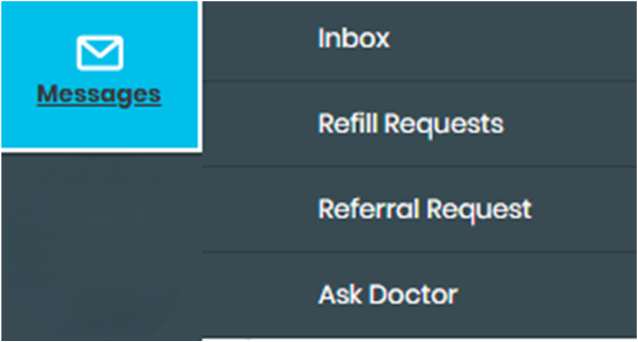
You can view messages sent to you from your provider, request prescription refills, and send messages to your provider through the “Messages” option on the menu.
Medical Records
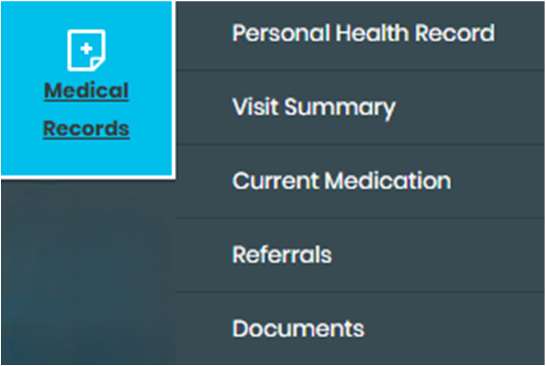
You can also view your personal health record, access previous visit summaries, and update your medications through the “Medical Records” option on the menu.
Accessing Your Account
For New Patients
Once you have been scheduled for an appointment, if you provided an email for your account, you will receive an invitation to join our Online Patient Portal! That email will include a “Set Up Portal Account” option, as well as your username listed directly above.
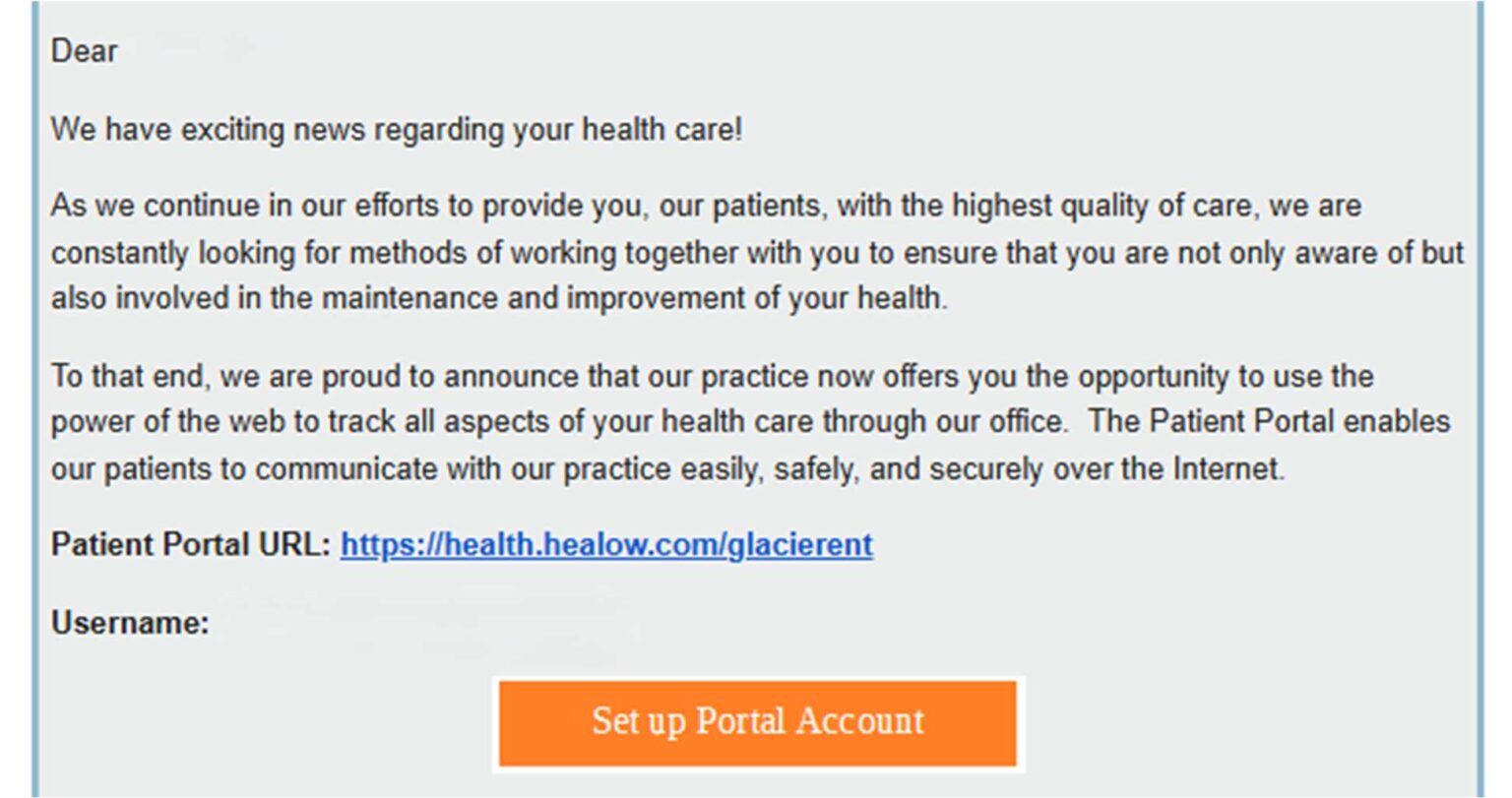
Click the orange “Set Up Portal Account” option – this will allow you to set up your account!
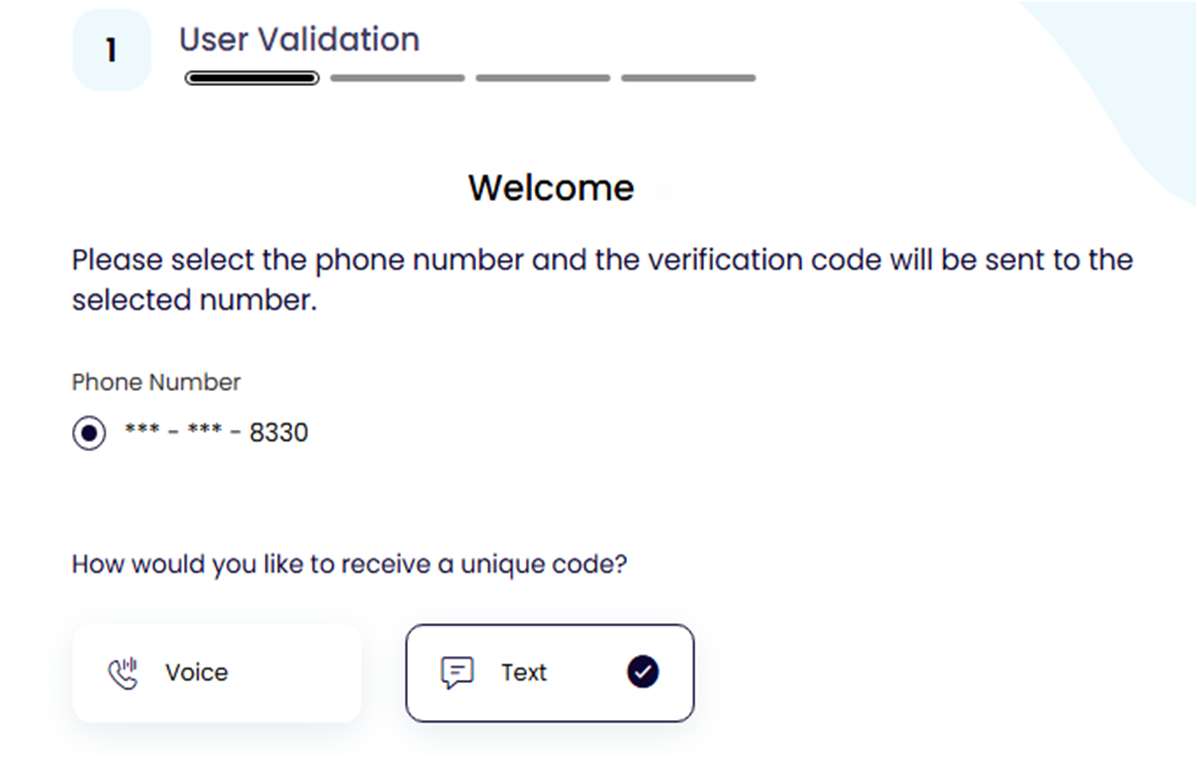
When you click the link, you will be taken to a screen for user validation
based off the phone number you provided upon scheduling. You can confirm this through phone call, or text message. They will send a text message or call you with a code – Type the code in on the next screen to verify your identity.
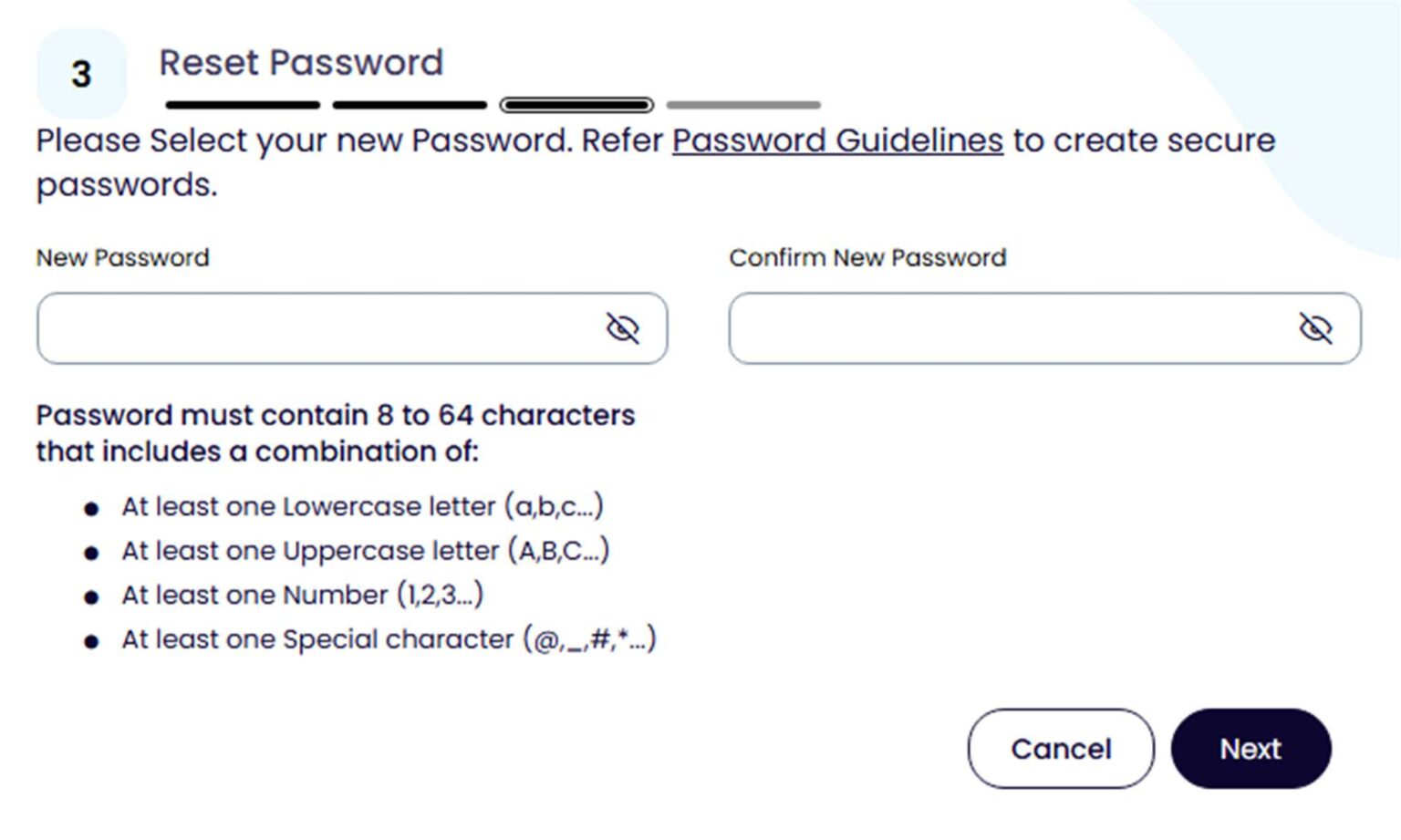
From here, you will be prompted to set a new password for your account based off the requirements listed below. After a new password is selected, it will direct you to the main page of our patient portal!
From here you will be able to view your medical records, appointments, and see messages sent to you from your provider or our billing office. You can select what to view from the lefthand menu visible on your computer screen.
Additional Patient Portal Features
Appointments
You can view upcoming appointments, check past appointment dates, and request new appointments from the “Appointments” option on the menu.
Messages
You can view messages sent to you from your provider, request prescription refills, and send messages to your provider through the “Messages” option on the menu.
Medical Records
You can also view your personal health record, access previous visit summaries, and update your medications through the “Medical Records” option on the menu.